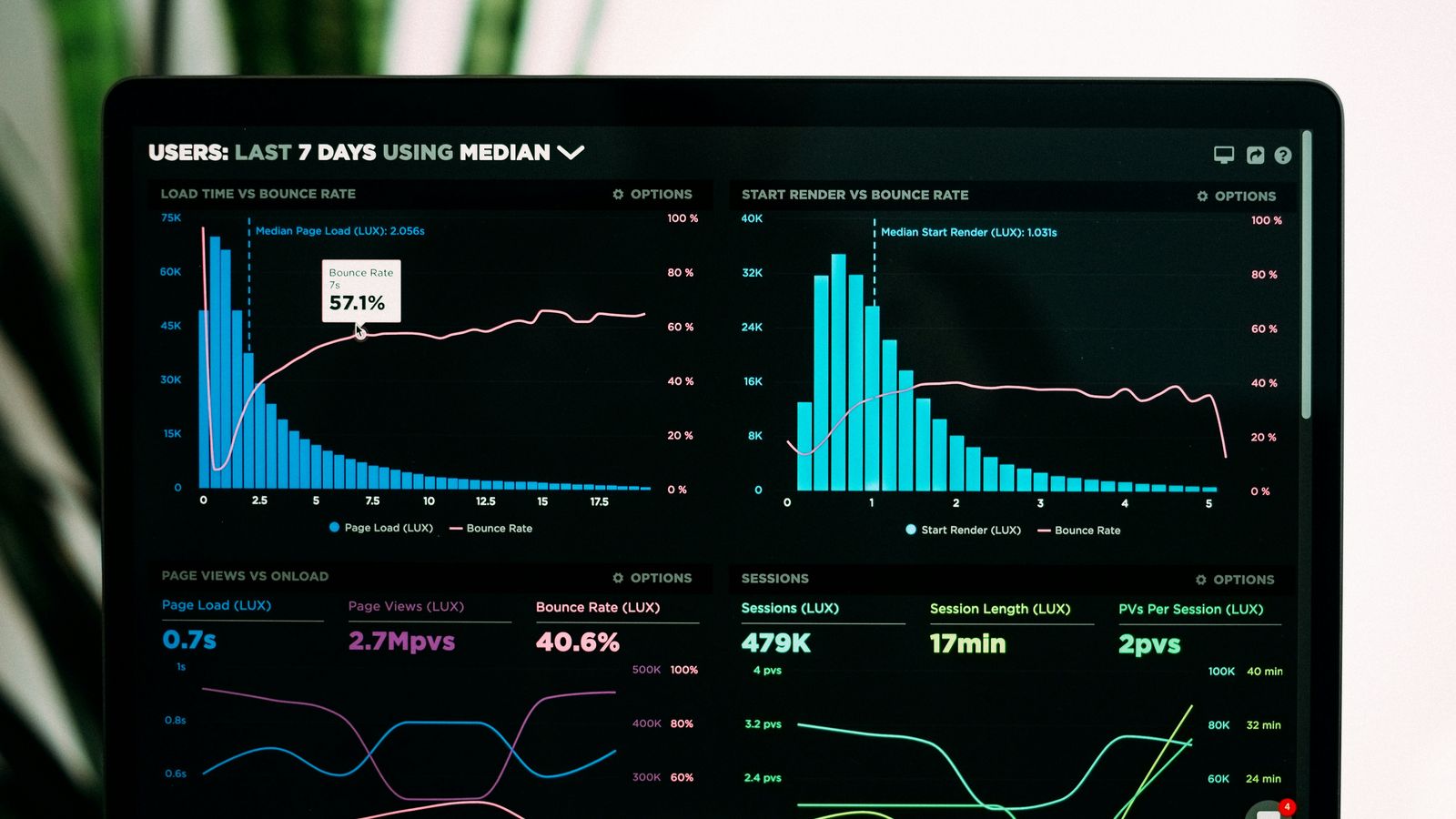
The fastest way is to export a report from Google Analytics 4 (GA4) as a CSV file and attach it to a chat with Claude or ChatGPT. It takes about five minutes, works on any plan, and needs no technical setup. However, a live connection, where the assistant queries your Google Analytics data directly in real-time, is also possible, but takes some technical setup.
Once the data is in the chat, you can ask plain questions about how your website is performing: what changed, which pages are working, where visitors drop off, and what to do next. Below are the three ways to connect, the prompts worth running, and the limits you should know about before you act on any answer.
What can an AI assistant do with my Google Analytics data?
It can read the numbers faster than you can click through reports, compare periods, spot patterns, and suggest things to test. It cannot see anything GA4 does not record, and it can misread what it does see.
GA4 does not show the search terms people typed into Google. For that you need Google Search Console, which tells you the queries, impressions, and rankings behind your organic traffic. If you want advice on SEO, give the assistant both. Analytics shows what visitors did on your site. Search Console shows how they found it.
Option 1: Export a report and upload it (the 5-minute route)
This is the easiest place to start for almost everyone.
- In GA4, open Reports, then Acquisition, then Traffic acquisition.
- Set the date range. Compare the last 90 days with the previous 90 days if you can.
- Click the share icon at the top right, then Download file, then Download CSV.
- Repeat for Engagement, then Pages and screens, so the assistant can see which pages hold attention.
- If you use Search Console, export the Queries and Pages tables from its Performance report.
- Attach the files to a new chat in Claude or ChatGPT and ask your question.
The trade-off is that the data is a snapshot. When you want fresh numbers, you repeat the steps to export again. For a monthly review, that is perfectly fine.
Option 2: Use a connector
AI assistants like Claude and ChatGPT support connectors, which are add-ons that let the assistant reach another service. In Claude, you add them from the connectors settings. In ChatGPT, they sit under apps and connectors.
As at the time of writing this post, Google does not have an official Google Analytics connector in either assistant's directory. However, several third-party reporting tools sell GA4 connectors for ChatGPT and Claude, and these change often, so search each assistant's directory for "Google Analytics" before you pay for anything. If you do use a third-party connector, check what data it stores and who can see it.
Option 3: Connect live through Google's Analytics MCP server
MCP, short for Model Context Protocol, is an open standard that lets an AI assistant call tools in other software. Google publishes an Analytics MCP server that lets an assistant run GA4 reports directly. Google labels it experimental, and it only reads data. Nothing it does can change your GA4 settings.
You will need:
- A Google account with access to the GA4 property
- A Google Cloud project, with the Google Analytics Data API and Google Analytics Admin API enabled
- Python 3.10 or newer and a tool called pipx
- The Google Cloud command-line tool (gcloud)
The setup, in short:
- Enable the two APIs in your Google Cloud project.
- Sign in with read-only access to Analytics by running gcloud's application default login with the scope
https://www.googleapis.com/auth/analytics.readonly. - Register the server with your assistant. In Claude Code, that is one command:
claude mcp add analytics-mcp --scope user -e "GOOGLE_APPLICATION_CREDENTIALS=PATH_TO_CREDENTIALS_JSON" -e "GOOGLE_PROJECT_ID=YOUR_PROJECT_ID" -- pipx run analytics-mcp. In Claude Desktop, the same command and settings go into themcpServerssection of its configuration file, then you restart the app. - Ask a question about your site. The assistant will list your accounts and properties, then run the reports it needs.
Follow Google's own README for the exact commands, because they change: github.com/googleanalytics/google-analytics-mcp.
What about ChatGPT? ChatGPT connects to remote MCP servers only, and custom connectors depend on your plan, according to OpenAI's help centre. Google's server runs on your own computer, so it does not plug into ChatGPT directly. You would need to host it somewhere reachable or use a third-party connector. For most people, Option 1 is the practical way to use ChatGPT with GA4.
Option 3 is a job for someone technical. If that is not you, hand this section to your developer or IT provider and ask them to set it up read-only.
What should I ask once it's connected?
Specific questions beat "how is my site doing?". These work with either a CSV or a live connection:
- Performance: "Compare the last 90 days with the previous 90. What changed in sessions, engaged sessions, and key events, and what are the three most likely reasons?"
- Content: "Which ten pages bring the most engaged visitors, and which ten get traffic but lose people fast? Suggest one change for each of the second group."
- Conversion: "Where do people who reach the contact or checkout page drop off? Which channels send the visitors most likely to convert?"
- SEO (with Search Console data): "Which queries get plenty of impressions but few clicks? Suggest title and heading changes for those pages."
- AEO and GEO: "Which of my pages get cited or visited from AI assistants, and what do they have in common?"
- Planning: "Based on all of this, give me a content plan for next quarter: five topics, the question each answers, and what to measure."
AEO (answer engine optimisation) means shaping your content so AI assistants quote it in their answers. GEO (generative engine optimisation) is the wider practice of being found and described accurately by generative AI. Both are measurable in GA4 now, which is the next section.
How do I see traffic coming from ChatGPT and other AI assistants?
GA4's default channel grouping includes an AI Assistant channel for visits from assistants such as ChatGPT, Gemini, Copilot, and Grok, according to Google's documentation. Google says it does not include clicks from Google's AI Overviews or AI Mode, which are counted under Organic Search.
To check yours, open Reports, then Acquisition, then Traffic acquisition, and look for the channel in the list. We ran the same check on our own property while writing this, and the channel was there. Expect small numbers. Some AI visits arrive without referrer information, so GA4 files them under Direct, which means the true figure is higher than the report shows. Track the trend, not the exact count.
Then ask the assistant which pages that traffic lands on. Those are the pages AI assistants already send people to. If your key pages are not among them, our guide to why a website gets no enquiries covers the findability fixes.
What are the limits and risks?
- It can sound certain and be wrong. Ask the assistant to show the figures it used, and check two or three against GA4 itself before acting on any recommendation.
- GA4 data is not perfect. It may withhold small counts for privacy, sample large queries, and miss visitors who decline cookies.
- Recommendations are hypotheses. "Shorten this form" is a good thing to test. It is not a guarantee. Change one thing at a time and measure.
- Check your data settings. Before you upload anything, check your organisation's AI policy and the assistant's data and training settings. GA4 is meant to hold no personal information, and it is worth confirming yours does not.
- Keep access read-only. Whatever route you use, the assistant should only ever view the data.
Start with one question this week
Export last month's Traffic acquisition report, attach it to a chat, and ask: "What are the three most important things in this data, and what should I test first?" Then check the answer against GA4 yourself. That one loop teaches you what the assistant is good at and where it needs supervision.
If you want more tips on how AI can help your business grow, join the newsletter using the sign-up form below.